
Table of Contents
WordPress Technical Setup (Quick Answer)
To properly set up WordPress in 2026, you must remove default bloat, enable SSL/HTTPS, and set permalinks to “Post Name.” Crucially, ensure search engines are not discouraged from indexing your site, configure a lightweight SEO plugin like Rank Math, and optimize for speed using WebP image compression and server-side caching. A clean technical foundation ensures your site is fast, secure, and ready to rank from day one.
This post may contain affiliate links, meaning we may earn a small commission at no extra cost to you. We only recommend products we trust, and your support helps us continue creating helpful content.
I once spent an entire week writing what I thought was the “perfect” article. I polished every sentence and hit publish with total confidence. Twelve months later, that post had received exactly zero visits from Google.
It wasn’t because the writing was bad. It was because I lacked a proper WordPress technical setup guide to follow. I had a single “invisible” setting checked that told search engines to ignore my site. I call that my Search Console Nightmare, and it’s a mistake that costs new bloggers a year of their lives.
Most guides tell you to “just start writing.” I’m telling you to build a clean foundation first. By using this WordPress technical setup guide, we are going to strip away the default WordPress bloat, lock down your security, and ensure that when you finally hit publish, Google actually knows you exist.
Step 1: The Digital Deep Clean (Core Web Vitals 2026)
When you first install WordPress, it’s like moving into a new house only to find the previous tenants left their old furniture and broken appliances in every room. Most hosting “auto-installers” pack your site with “recommended” plugins and themes. To you, they look like helpful tools; to Google, they look like bloat.
Every unnecessary line of code slows your site down. In 2026, Core Web Vitals (speed and stability) are the barrier to entry. According to the official WordPress optimization standards, a lean database is the first step toward a high-ranking site.
- Default Plugins: Navigate to Plugins > Installed Plugins. Select all, Deactivate, and Delete.
- Default Themes: Keep the most recent default (like Twenty Twenty-Four) as a backup and delete the rest.
- Placeholder Content: Delete the “Sample Page” and the “Hello World” post immediately.
Step 2: Secure Your Site (The SSL Setup)
If you don’t have that little padlock icon in the browser bar, Google will literally label your site “Not Secure.” This is a 100% bounce rate death sentence.
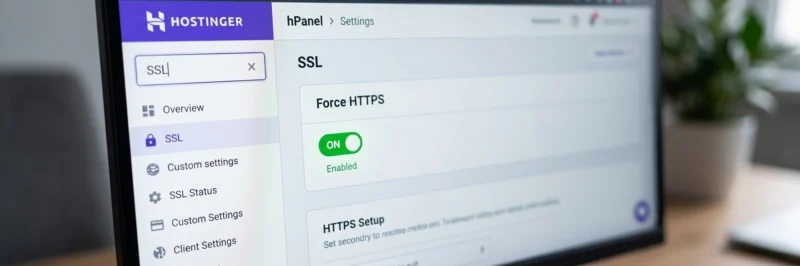
The 30-Second Fix in your Hostinger hPanel Settings:
- In your dashboard, search for SSL.
- Click Install/Activate (included for free).
- Ensure the “Force HTTPS” toggle is ON. This automatically redirects readers to the secure version of your site.
Pro Tip: If you want to avoid the headache of manually fixing SSL certificate errors or server-side caching, I recommend using a host that handles this out of the box. I use Hostinger because their hPanel automates 90% of this technical heavy lifting. It’s the difference between spending your weekend troubleshooting—or actually building your business.
Step 3: Fix Your Permalinks (SEO Structure)
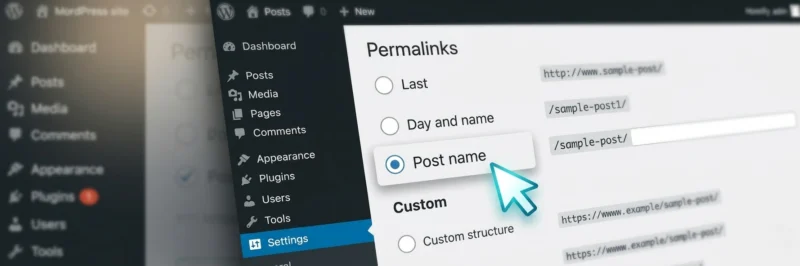
If you ignore everything else in this WordPress technical setup guide, do not ignore this. By default, WordPress gives your articles dated URLs (e.g., /2026/03/sample-post/).
This is an SEO disaster. If you update that post in two years, the URL makes it look ancient. Or worse, if you try to change the URL later, you break every link you’ve ever built.
How to Set WordPress Permalinks to Post Name:
- In WordPress, go to Settings > Permalinks.
- Select Post name.
- Save Changes.
Step 4: The Visibility Check (Stop Shouting into a Closet)
This is the “One Button” that can kill your business. In 2026, you want Google to see your foundation the moment it’s poured so it can start “dating” your domain.
- Go to Settings > Reading.
- At the bottom, find Search engine visibility.
- UNCHECK the box: “Discourage search engines from indexing this site.”
- Hit Save Changes. You now officially exist.
Step 5: Your Rank Math SEO Configuration
A major part of any WordPress technical setup guide is the ‘Guardian’ you choose. I use Rank Math because it’s the only tool light enough to protect your site speed. If you haven’t seen how this fits into the bigger picture, go back and review my complete 2026 blogging roadmap before you go any further.
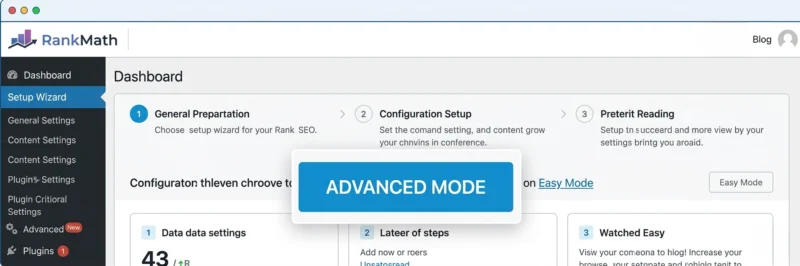
- Advanced Mode: You’re building a business, not a hobby.
- Sitemaps: Turn them ON. This is the GPS map you send to Google.
- The No-Index Law: Set “Empty Category and Tag Archives” to No-Index. This prevents Google from wasting time on “thin” pages that don’t help your readers.
The Truth: Most people struggle with SEO because they try to do it manually. I don’t have time for that. I use the Pro version of Rank Math because it tracks my keywords and fixes my technical errors while I’m sleeping. If you’re serious about this being a business and not just a diary, it’s the best $5.00 a month you’ll ever spend.
Step 6: Optimize Speed & Performance
A clean install is fast, but the first 10 images a beginner uploads usually break the site. Large images are the #1 reason blogs fail to rank.
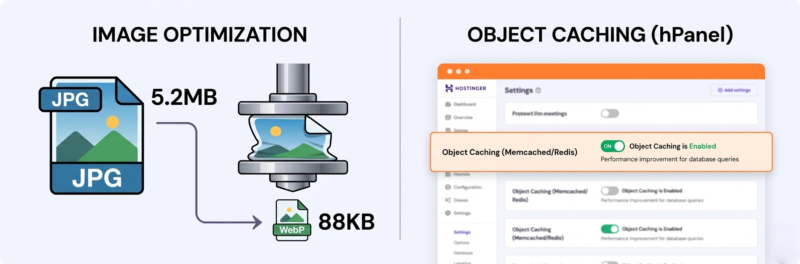
The Image Rule: Never upload a raw photo. Use WebP image optimization to keep your file sizes under 100KB. You can test your current page speed and image impact using Google PageSpeed Insights, which is the gold standard for measuring technical health.
- Enable Object Caching: Inside your Hostinger hPanel settings, find the “Performance” tab and toggle on Object Caching. This makes your site feel like it’s running on rocket fuel.
Pro Tip on Infrastructure: Choosing a host isn’t just about the price; it’s about the server technology under the hood. I chose Hostinger for The Side Hustler specifically because they use LiteSpeed servers and NVMe storage, which are the current 2026 gold standards for WordPress. I’ve broken down exactly why I chose this specific setup for my blog here.
Step 7: Connecting the GPS (Google Search Console)
Rank Math is your internal map; Google Search Console (GSC) is how you tell Google that map exists.
- Connect your Rank Math account to GSC during the setup wizard.
- This allows you to see exactly which keywords people are using to find you.
Step 8: The Legal Privacy Shield
You haven’t built a sustainable income stream if you’re one legal oversight away from a shutdown. Google treats a Privacy Policy and Terms of Service as a ‘Trust Signal’—it’s how they verify you are a Real Business that deserves to rank.
- Go to Settings > Privacy in WordPress.
- Use the built-in generator to create a Privacy Policy.
- Create a Disclaimer page (essential for affiliate links).
- Add these to your Footer Menu. This builds massive E-E-A-T (Trust).
Final Foundation Audit
- [ ] Root Domain: Is WordPress on [suspicious link removed] (not /wp)?
- [ ] SSL: Is the padlock visible?
- [ ] Permalinks: Are they set to /post-name/?
- [ ] Visibility: Is the “Discourage” box unchecked?
- [ ] Legal: Are your Privacy/Disclaimer pages in the footer?
If you checked all five, your foundation is set in concrete. Now that the red tape is handled, we can finally get to the part that actually builds your freedom.
Beyond the Checklist
Checking those five boxes means your blog is officially on the map. You’ve bypassed the technical debt that sinks most beginners before they even earn their first dollar.
But I know what you’re thinking. Even with a perfect foundation, the technical side of blogging can feel like a “black box” once you start actually posting. To make sure you don’t get paralyzed the next time a setting looks confusing, I’ve pulled together the honest answers to the questions that usually keep new bloggers awake at night.
The Common Questions (The Technical Truth)
Does a fast WordPress theme really matter for SEO in 2026?
Yes, but not for the reasons you think. Google’s Core Web Vitals measure “User Experience.” If your theme is bloated with “fancy” animations that take 3 seconds to load, your bounce rate will skyrocket. In 2026, speed is a trust signal. I recommend using a lightweight theme like Astra or GeneratePress combined with Hostinger’s Object Caching to ensure you stay in the green.
Should I use “www” or “non-www” for my domain?
From an SEO standpoint, it doesn’t matter—Google treats them the same. However, from a branding standpoint, non-www (e.g., thesidehustler.blog) is cleaner, shorter, and easier to type on mobile devices. Whatever you choose, stick to it. Changing this later is a technical nightmare that requires complex redirects.
Can I change my permalink structure after I’ve published posts?
Technically, yes, but don’t do it unless you have a death wish for your rankings. Changing a URL structure without a “301 Redirect” results in 404 errors (broken links). This tells Google your site is unreliable. This is why I insist on setting your permalinks to “Post Name” before you write a single word.
Is the Rank Math Pro version worth the investment for beginners?
If you are treating this as a business, yes. The Pro version of Rank Math tracks your keyword rankings over time. Without it, you’re flying blind—you won’t know if your “Information Gain” strategy is actually working until you check your traffic months later. Pro gives you the data to pivot fast.
What happens if I forget to uncheck the “Discourage Search Engines” box?
Your site will be invisible. You could write the greatest masterpiece in the history of the internet, and Google will legally ignore it. I have seen bloggers lose six months of growth because of this one tiny checkbox. Check it twice. Then check it again.
Conclusion: From Red Tape to Reality
I know that clicking through hPanel settings and configuring SEO plugins isn’t why you started this journey. You started this because you’re tired of the 9-to-5 grind and you want to build a life where you own your time.
But here is the blunt truth: A professional life isn’t built on wishful thinking; it’s built on a solid digital foundation. By following this WordPress technical setup guide, you’ve done the boring, difficult work that 90% of your competitors are too lazy to do. You haven’t just set up a blog; you’ve built a professional-grade asset that is ready to scale.
The red tape is officially behind you. Your site is fast, secure, and visible to the world. Now, it’s time to stop talking about “how” to build and start actually building. Your future is waiting, and the next step is the most exciting one of all.
I’ll be honest: the first time I saw a “404 Error” on my own site, I nearly closed my laptop for good! Does the technical side of WordPress make you feel like a pro, or does it give you the “tech jitters”? Let’s troubleshoot your setup hurdles in the comments!
