
Table of Contents
This post contains affiliate links. If you click through and buy something, I may earn a small commission — at no extra cost to you. I only recommend tools I’ve actually used or thoroughly researched.
Installing WordPress is the easy part. Knowing what to do next is where most new bloggers get stuck.
If you want to set up a WordPress blog properly, not just get it running, but get it running well, this is the guide for you. I’ll walk you through every setting, plugin, and page you need to sort out before you start publishing, in the order that makes sense.
Eleven steps sounds like a lot, but most of it is quick. The actual setup work, steps 1 through 10, adds up to roughly 90 minutes to two hours if you work through it in one sitting. Step 11, writing your first three posts, is the only part that genuinely takes real time, and that’s fine, it’s meant to.
No fluff, no filler. Just the things that matter.
Haven’t got hosting yet? Hostinger is what I use for thesidehustler.blog, with plans from around $2.69/month on a longer plan, a free domain included, and WordPress installs in minutes. Get that sorted first, then come back here.
How to Set Up a WordPress Blog: What You Need First
This guide assumes WordPress is already installed on your hosting account. If you haven’t done that yet, start there first.
I use Hostinger for thesidehustler.blog. They have a smooth WordPress auto-installer and LiteSpeed Cache built into every plan, which means your site loads fast without you having to configure anything. Plans start from around $2.69/month on a longer plan, with a free domain for year one. If you’re still choosing a host, that’s where I’d point you.
Recommended reading: How to Start a WordPress Blog on Hostinger (Step by Step)
Step 1: Sort Out Your Permalink Structure First
This is the first thing to do, before your theme, before your plugins, before anything else.
Permalink structure controls how your URLs look. By default, WordPress uses ugly URLs like yoursite.com/?p=123. You want clean URLs like yoursite.com/post-title/.
Here’s why it needs to be done first: if you publish posts and then change your permalink structure later, all your existing URLs break. Fix this before you publish a single thing.
How to do it: Go to Settings → Permalinks in your WordPress dashboard. Select Post name. Click Save Changes.
Done. Move on.
Step 2: Configure Your General Settings

While you’re in Settings, sort out the rest of the general configuration needed to configure WordPress blog basics properly.
Go to Settings → General and set:
- Site Title: Your blog name, exactly as you want it to appear in browser tabs and search results
- Tagline: A short description of what your blog is about. Keep it to one sentence.
- Admin Email: The email address where WordPress sends notifications and password resets. Make sure it’s one you check regularly.
- Time Zone: Set this to your local time zone. It affects when scheduled posts go live.
- Date and Time Format: Set to your preference.
Click Save Changes.
Step 3: Clean Out the Default Content
WordPress installs with placeholder content you don’t want on a real blog.
Delete all of it:
- Go to Posts, hover over “Hello World” and click Trash
- Go to Pages, hover over “Sample Page” and click Trash
- Go to Comments, delete the default sample comment
Also check Settings → Discussion and make sure Comment must be manually approved is checked. This stops spam getting through automatically while still allowing genuine comments.
Step 4: Choose and Install Your Theme
Your theme controls how your blog looks. You don’t need to spend money on a premium theme to start, there are excellent free options that will serve you well for a long time.
Go to Appearance → Themes → Add New and search for one of these:
Astra: lightweight, fast, and highly customizable. Works well with page builders if you want to get into custom design later. One of the most popular WordPress themes in existence for good reason.
Kadence: very similar to Astra in speed and flexibility. Excellent free version, intuitive block-based customizer, solid design defaults out of the box.
GeneratePress: minimal and extremely fast. Favored by SEO-focused bloggers because it adds almost no bloat to your page load time.
Pick one, click Install, then click Activate.
Don’t spend more than 20 minutes on this. A clean, simple free theme beats a complicated premium one for a new blog. You can always change it later without losing your content.
Once activated, go to Appearance → Customize to set your colors, upload a logo if you have one, and tweak the basic layout. Keep it simple.
Step 5: Install Your Essential Plugins
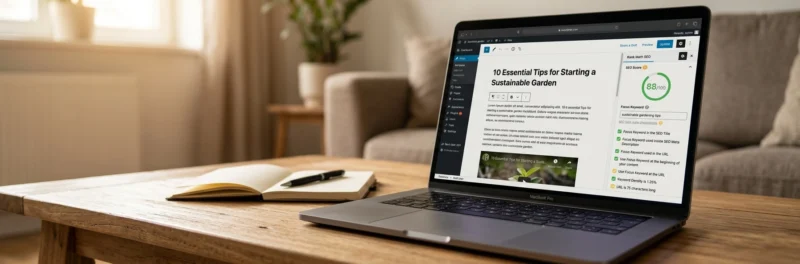
This is where most beginner guides go wrong: they list 15 plugins and your site ends up slower than it needs to be. You don’t need many. Start with these and nothing else.
SEO: Rank Math If you set up WordPress through Hostinger, good news: Rank Math is already pre-installed. Just activate it and run through the setup wizard. If you’re on a different host, go to Plugins → Add New and search for Rank Math to install it. Either way, get this done before you publish anything. The free version already covers what a new blog needs: on-page SEO scoring, up to five focus keywords per post, schema markup, sitemaps, and Google Search Console integration. When you want to track how your keywords are ranking over time, or get Content AI’s research suggestions, Rank Math Pro is worth the upgrade.
Recommended reading: Rank Math Setup Guide: How to Configure It for Your Blog
Security: Wordfence Free and solid. Activates a firewall, scans for malware, and monitors login attempts. Run through its setup wizard when you activate it and leave the default settings, they’re sensible.
Image Optimization: Smush or ShortPixel Unoptimized images are the most common reason blogs load slowly. Either plugin compresses your images automatically on upload, without noticeable quality loss. Install one, not both.
Forms: WPForms Lite For your contact page. Free, easy, no code required. Creates clean, functional forms in minutes.
What you do NOT need:
A caching plugin. If you’re on Hostinger, LiteSpeed Cache is built into every plan and runs automatically from the moment WordPress is installed. Adding a separate caching plugin on top creates conflicts. Leave it alone. Hostinger handles it.
A CDN plugin. Hostinger’s infrastructure handles this adequately for a new blog. Revisit when you’re getting serious traffic.
Step 6: Configure Rank Math Properly
Rank Math is worth ten minutes of proper setup, because it pays back every time you write a post.
When you first activate it, it runs a Setup Wizard. Work through it carefully:
- Connect your Google account so Rank Math can integrate with Google Search Console
- Choose Simple Mode to start. It covers everything a new blog needs without extra complexity, and you can switch to Advanced Mode later if you want finer control
- Set your site type (Blog) and fill in your name and social profiles
- Enable the modules you need: SEO, Sitemap, Schema. Leave others off for now.
Once configured, Rank Math adds a panel to every post editor. It scores your content against your focus keyword and flags what to improve. Aim for green every time.
Step 7: Create Your Essential Pages
Every blog needs a handful of standard pages before publishing posts. These build trust, cover legal requirements, and give readers somewhere to go beyond your posts.
About Page Who you are, what this blog covers, and why someone should keep reading. Be genuine and specific, skip the corporate bio. This is often the second most visited page on a blog after the homepage.
Contact Page Add your WPForms contact form here. Readers, brands, and potential affiliate partners need a way to reach you.
Privacy Policy Required by law in most countries if you collect any personal data, which you do, even with just Google Analytics running. WordPress includes a template to start from. Go to Settings → Privacy, click Create, and edit it for your blog.
Affiliate Disclosure If you plan to use affiliate links, and you should, you need an FTC-compliant disclosure. A short paragraph explaining that posts may contain affiliate links and you may earn a commission. Create a Disclaimer page and reference it at the top of every post with affiliate links.
Once all pages are created, add them to your navigation menu via Appearance → Menus.
Step 8: Set Up Google Analytics and Google Search Console
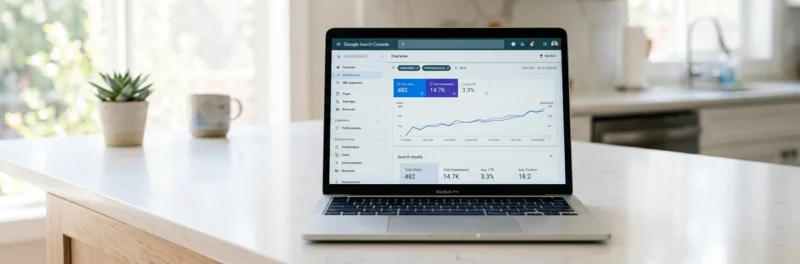
Both are free. Both are essential. Set them up before you have any traffic. You want data from day one, not from month three.
Google Search Console: go to search.google.com/search-console, add your site as a property, and verify ownership. Rank Math handles the verification code automatically, which makes this painless. Search Console tells you which keywords you rank for, how many clicks you get from Google, and whether there are any indexing issues.
Google Analytics 4: go to analytics.google.com, create a new property for your blog, and install the tracking code. The simplest method is through Rank Math’s Google Analytics integration: connect your account inside Rank Math and it installs the code for you.
Step 9: Submit Your Sitemap to Google
A sitemap is a file listing all your blog’s pages and posts so Google can find and crawl them efficiently. Rank Math generates one automatically.
Your sitemap URL is: yoursite.com/sitemap_index.xml
Go to Google Search Console, click Sitemaps in the left menu, paste in your sitemap URL, and hit Submit. Do this once. Rank Math keeps it updated automatically as you publish.
Recommended reading: How to Get New Blog Posts Indexed Fast
Step 10: Set Up Your Email List Before You Launch
Most people leave this until they have traffic. That’s a mistake.
Your email list is the only audience you truly own. Google rankings fluctuate, Pinterest algorithms shift, social platforms fade. Email subscribers stay with you through all of it.
Only ten visitors this week? That’s still ten people worth capturing before they forget you exist. MailerLite is free up to 250 subscribers and 2,500 emails a month, automation included, so your opt-in can start working before you’ve earned a single dollar from the blog.
Even if your first week brings ten visitors, set up your opt-in and start collecting anyway. The tool I use for this blog is MailerLite, free up to 250 subscribers and 2,500 emails a month, with automation included on the free plan. When you outgrow it, Kit (formerly ConvertKit) is the natural next step, and it’s where I’m heading myself.
Create your account, build a simple opt-in form, and add it to your blog sidebar and below your posts. A basic “Get new posts by email” works fine to start. Add a lead magnet once you know what your readers value most.
Step 11: Write Your First Posts
Three posts before you launch. Not one.
When a new reader finds your blog, you want them to have somewhere to go after that first post. One post gives them nothing. Three gives them a reason to explore.
They don’t need to be perfect. They need to be useful. Pick three topics your target reader would search for and write the most helpful version of each.
Once you’re past those first three and want to speed up the research and drafting side, tools like SEOWriting AI are worth a look. I’ll be honest: I haven’t put it through its paces on this blog yet, so treat it as a place to start rather than my personal stamp of approval. Whatever you use, edit anything AI drafts into your own voice before it goes anywhere near publish.
Recommended reading: How to Write a Blog Post (That People Actually Read)
Recommended reading: Blog Design for Beginners: How to Make Your Blog Look Good
WordPress Blog Setup Checklist
Use this WordPress setup guide checklist before you launch:
Settings:
- Permalink structure set to Post name
- Site title and tagline set
- Time zone correct
- Default content deleted
Theme:
- Theme installed and activated
- Basic colors and logo configured
- Navigation menu created and assigned
Plugins:
- Rank Math installed and configured
- Wordfence activated
- Image optimization plugin installed
- WPForms Lite installed
Pages:
- About page published
- Contact page published
- Privacy Policy published
- Affiliate Disclosure published
- All pages in navigation menu
Analytics and SEO:
- Google Search Console verified
- Google Analytics 4 installed
- Sitemap submitted to Google
Content and email:
- At least 3 posts published
- Email opt-in live on the site
Everything ticked? You’ve done the work to set up a WordPress blog the right way, and you’re ready to grow.
The next step is getting people to find you: through search, Pinterest, and your email list. That’s the longer game, but you’re now starting it on solid foundations.
Recommended Reading:
- How to Start a Blog in 2026 (Full Beginner’s Guide)
- WordPress Technical Setup Guide: 10 Essential Checks for a Fast, Secure Blog
- How to Promote Your Blog: 8 Proven Ways to Get Your Content Seen
- Best Hosting for Bloggers in 2026
Still need hosting? Don’t let that hold you up. Hostinger gets you from zero to a live WordPress site in under an hour, free domain included.
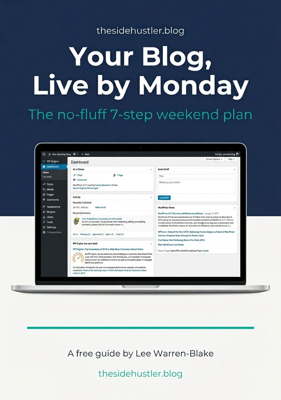
Download Your Free Blog Launch Roadmap
Get the no-fluff 7-step weekend plan that takes you from blank page to live blog — free instant download.
Have a question about WordPress setup I haven’t covered? Drop it in the comments.

Pingback: How to Set Up a WordPress Blog in 2025 (Step-by-Step) – Links
Pingback: How to Start a Blog in 2025 (Beginner’s Guide) – Sky Forbes