
Table of Contents

This post contains affiliate links. If you click through and buy something, I may earn a small commission, at no extra cost to you. I only recommend tools I’ve actually used or thoroughly researched.
If you want steady Pinterest traffic, the single biggest lever is consistency, and the easiest way to stay consistent is to schedule Pinterest pins in advance instead of posting by hand every day. Showing up daily with fresh pins tells Pinterest you’re an active, reliable source. And Pinterest rewards that.
The problem is that pinning manually every single day gets old fast. Life gets in the way. You miss a day, then two, then suddenly it’s been two weeks and your momentum is gone.
That’s where scheduling comes in. You batch your pin creation in one sitting, set the pins to go out over the coming days, and Pinterest gets its daily content without you having to think about it.
Whether you’re comparing pinterest scheduling tools for the first time or just want to know how to schedule pins on Pinterest properly, this guide covers which tools are worth using and how to build a routine that keeps your account active without eating your week.
Recommended reading: Pinterest Strategy for Beginners
Why Consistency Matters So Much on Pinterest
Before we get into the how, it’s worth understanding why consistency has such a big impact on your results.
Pinterest’s algorithm rewards accounts that pin regularly. When you publish fresh pins consistently, Pinterest reads your account as active and trustworthy, and gives your content better distribution as a result.
The flip side is true too. Gaps in activity, even a few days, can cause a noticeable dip in impressions and reach. Pinterest notices when you go quiet.
This doesn’t mean you need to be on Pinterest every day. It means your pins need to go out every day. That’s a crucial difference, and it’s exactly what scheduling tools solve.
According to Pinterest’s business resources, fresh content, new images with new descriptions, consistently outperforms repinned or recycled content. Scheduling tools make it practical to keep that fresh content flowing without it becoming a daily chore.
How Many Pins Should You Schedule Per Day?
This is one of the most common questions beginners ask, and the real answer is: it depends on where you are in your Pinterest journey.
Starting out (0–3 months): Aim for 3–5 pins a day. Focus on quality over quantity. Every pin should be fresh, a new image, a new title, a new description, even if it links to the same blog post.
Growing (3–6 months): You can move up to 5–10 pins a day as you build a library of designs and posts to promote.
Established (6+ months): Some experienced Pinterest marketers pin more than this, but there’s no magic number. More pins only help if they’re good pins. Flooding your boards with low-quality content to hit a daily target does more harm than good.
The most important thing isn’t the number, it’s the consistency. Three pins a day, every day, beats 20 pins on a Sunday and nothing for the rest of the week.
Option 1: Pinterest’s Native Scheduler
The Pinterest native scheduler is Pinterest’s own built-in scheduling tool, and it’s free. You can schedule pins up to 30 days in advance right inside Pinterest, no third-party tools needed.
How to Schedule Pins Using Pinterest’s Native Scheduler
- Log into your Pinterest business account
- Click the + icon to create a new pin
- Upload your pin image
- Add your title, description, and destination URL
- Select the board you want to pin to
- Instead of clicking Publish, click the dropdown arrow next to it and select Schedule
- Choose your date and time and confirm
That’s it. The pin goes out automatically at the time you set.
What Pinterest’s Native Scheduler Does Well
It’s free, it’s straightforward, and it’s built right into the platform, so there’s no syncing, no third-party login, and no risk of anything breaking because of an API update.
For bloggers who are comfortable with Pinterest and have their pinning routine down, the native scheduler covers everything you need. Once you’re in the habit of batch scheduling, it does the core job without a separate login.
Where It Falls Short
The native scheduler is fairly basic. There’s no queue that automatically fills your schedule, no suggested best times based on your audience data, and no community features for extra reach. You’re also capped at 30 days ahead, so you need to revisit it regularly.
If you’re just starting out and still building your pinning habit, those missing features matter more than they do for someone who already has a system.
Option 2: Tailwind
As a tailwind pinterest scheduler, Tailwind is the best-known name in the space, and for good reason. It was built specifically for Pinterest and Instagram, and the feature set goes well beyond basic scheduling.
I used Tailwind when I was getting started with Pinterest, and it really did make the early stages easier. Here’s what sets it apart.
The SmartSchedule
Tailwind looks at your account and your audience to suggest the best times to post, the windows when your audience is most active and most likely to engage. You don’t have to guess. You fill the queue and Tailwind handles the timing.
The Queue System
Instead of setting a specific date and time for each pin, Tailwind lets you drop pins into a queue that slots them into your scheduled posting times automatically. It’s a much faster workflow than scheduling each pin one by one. You batch your pin creation, add them all to the queue, and you’re done.
Tailwind Communities
This is the feature that really sets Tailwind apart from the native scheduler. Tailwind Communities (previously called Tribes) are groups of creators in the same niche who share each other’s pins. You add your pin to a community, other members can reshare it to their own Pinterest audiences, and you do the same for them.
For new accounts trying to build momentum, that extra reach can make a real difference. Pinterest’s own scheduler can’t offer anything like it.
My Honest Take on Tailwind
Tailwind is a stronger Pinterest-specific tool than the native scheduler for beginners. The SmartSchedule, the queue, and Communities all make the early stages a lot easier.
Here’s my honest take, though. I started out on Tailwind and it earned its place early on, I still dip into it now and then. But these days I mostly use Buffer (more on that just below). Once I was posting to other platforms as well as Pinterest, having everything in one calendar mattered to me more than the Pinterest-only extras. That’s a personal call, not a knock on Tailwind.
If you’re new and still finding your feet on Pinterest specifically, Tailwind takes a lot of the guesswork out of it. The SmartSchedule alone is worth it in the early months.
Tailwind has a free plan that lets you schedule a limited number of pins a month, worth trying before you pay for anything.
Option 3: Later
Later is another scheduling tool that covers Pinterest alongside Instagram, TikTok, and other platforms. If you’re managing social media across several channels and want everything in one place, Later is worth a look.
For Pinterest specifically, Later offers visual scheduling, you can see your upcoming pins laid out in a calendar view, which makes it easy to spot gaps and plan ahead. Some people find it a cleaner interface than Tailwind, though it doesn’t have the Communities feature.
Later has a free plan with limited scheduling, and paid plans that unlock more posts and analytics.
If Pinterest is your main focus, Tailwind is the stronger choice. If you’re juggling several platforms and want one tool to run them all, Later is a solid option.
Option 4: Buffer
Buffer is the tool I lean on most these days. It’s not Pinterest-specific the way Tailwind is, it’s a multi-platform scheduler that handles Pinterest alongside Instagram, Facebook, and the rest. For me that’s the whole appeal: I can line up Pinterest and my other channels in one place instead of bouncing between tools.
The draw for beginners is the free plan. Buffer lets you schedule a set number of posts a month across your connected accounts at no cost, which is plenty when you’re starting out and watching every expense.
It doesn’t have the Pinterest-specific extras, there’s no equivalent of Tailwind Communities, and the timing suggestions aren’t as Pinterest-focused. But if you’re on a tight budget, or you’re already posting to other platforms and want one calendar for the lot, Buffer does the core job well and costs nothing to start. That’s exactly why it’s the one I reach for.
How to Build a Sustainable Pinning Routine
The tool you use matters less than the routine you build around it. Here’s a simple weekly workflow that keeps your account active without it taking over your life.
Batch Your Pin Creation (Once a Week)
Set aside one or two hours a week, whatever fits your schedule, to create all your pins for the coming week. Open Canva, use your templates, and knock out 20–30 pins in one sitting.
This is far more efficient than making one or two pins every day. Once you’re in creative mode with your templates open, producing multiple designs is fast. Doing it piecemeal every day is slow.
Schedule Everything in One Go
Once your pins are made, schedule them all in one sitting. Whether you’re using Tailwind, Buffer, or the native scheduler, loading your queue for the week takes 20–30 minutes max.
Set your daily volume (3–5 pins to start), spread them across your boards, and you’re done. Pinterest is handled for the week.
Check In Briefly Each Day
You don’t need to do anything daily, your scheduler handles the posting. But a quick two-minute check to make sure everything’s running and nothing has broken is good practice.
Review Monthly
Once a month, look at your Pinterest Analytics and ask: which pins got the most clicks? Which boards are driving the most traffic? Use that to shape what you create next month. Double down on what’s working, adjust what isn’t.
Full guide: Pinterest Analytics Guide

Free Pinterest Training Workshop
Content ideas are only useful if your Pinterest strategy is solid enough to make them work. Meagan Williamson’s free workshop — The Discovery Loop — covers the full system so your content gets found.
Tips to Schedule Pinterest Pins Effectively
Create multiple pins per blog post. Each post should have 3–5 different pin designs, different images, different headlines, same destination URL. That gives you more content to schedule and more chances to get traction in search.
Spread pins across boards. Don’t pin all your designs to the same board on the same day. Spread them across relevant boards and space them out. Pinterest can flag accounts that pin the same URL too often in a short window.
Keep descriptions fresh. Even if two pins link to the same post, give them different titles and descriptions. Pinterest rewards fresh, unique content, and identical descriptions across multiple pins can look like spam.
Schedule seasonal content early. If you’re making pins around seasonal topics, Christmas gift ideas, summer travel tips, back-to-school content, schedule them 4–6 weeks before the season peaks. Pinterest content takes time to gain traction, so early beats on time.
Don’t abandon old content. Your older posts are still worth pinning. Create fresh pin designs for your best evergreen content and keep scheduling them. A post you wrote a year ago can still drive traffic if you keep making new pins for it.
Native Scheduler vs Tailwind: Which Should You Use?
Here’s a simple way to think about it:
Use the native scheduler if you’ve been on Pinterest a while, you’re comfortable with your routine, and you want to keep things simple and free.
Use Tailwind if you’re just starting out and want suggested posting times, a faster way to batch your scheduling, or access to Communities for extra reach.
And if you’re juggling other platforms alongside Pinterest, a multi-platform tool like Buffer or Later may suit you better than either, one calendar for everything, and Buffer’s free plan makes it easy to start.
None of them is wrong. They can all get you results. The one you’ll actually use consistently is the right choice.
Final Thoughts
Scheduling Pinterest pins isn’t complicated, it’s just a habit. Build the routine of batching your pin creation once a week, loading your scheduler, and letting it run. Do that consistently for three to six months and Pinterest traffic starts to feel reliable rather than random.
The tool matters less than the consistency. Pick one, learn it, and stick with it.
Next step: Pinterest Pin Design
Scheduling is one step of six, and it only pays off when the rest are in place. To see where it fits in the whole week, grab the free Pinterest Starter Checklist below. One page, every step, in order.
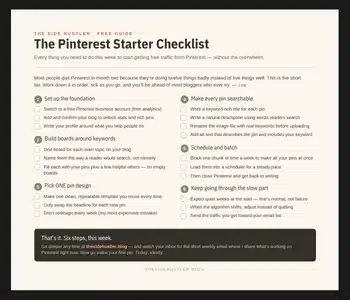
Download Your Free Pinterest Starter Checklist
Grab the free one-page checklist that shows you exactly what to do first, next, and after that.
